Support / Using Binda
Using Binda
A guide to the things Binda does, day to day. Everything is designed to be reassuring — clear, unhurried, and free of manufactured urgency.
Your Home dashboard
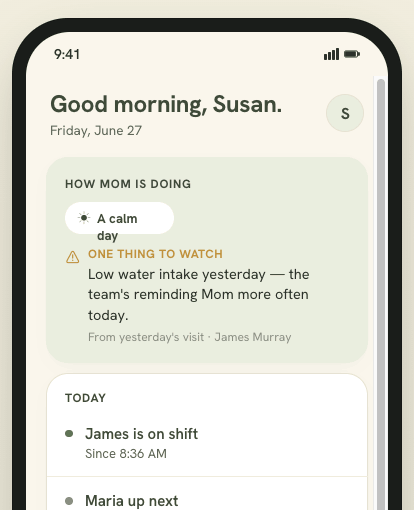
Home is your calm morning launchpad — a set of cards you can arrange to fit how you work.
- How the week looks — an AI read of the last 7 days of care notes, shown as a simple face plus a few short themes (e.g. “Sleeping well”, “Low appetite”). It’s a scannable summary for the coordinator, care team, and doctor — a summary of notes, not medical advice. It appears only once the care manager has turned on AI help for the circle.
- Next seven days — everything coming up: care-team shifts, doctor appointments, and events, grouped by day.
- Waiting on you (coordinator) — the actual items that need you, each with the person’s name and the date/time: shifts to approve, shift requests, and appointment requests.
- Care circle — who’s in the circle at a glance (names + roles), with a link to manage them.
- Write a note — opens the note composer right here in a pop-up.
- Alerts — recent updates for the plan. Tap any alert to jump straight to it — an appointment alert opens Providers, a medication alert opens Medications, a note reply opens Notes, and so on.
If you do the hands-on care yourself
When you tell Binda the care is “Mostly me” (see Set up a care plan), Home stops describing a team you don’t have. Instead of who is on shift and what is waiting for approval, you get today: the next dose, today’s appointment, and today’s tasks — which you can tick off right there.
Hours and expenses stay out of the way unless you want them. Some families are reimbursed for a family caregiver’s time, so there is a switch for it: Plan settings → Care setup → Log my own time and expenses. Turn it on and Home gains a Log my time card; the short note you write when you finish is what fills in “How they’re doing” over the week.
Nothing is locked in. Invite someone later and the team cards come back; change the answer any time in Plan settings.
Customize: tap Customize to reorder cards or hide the ones you don’t use — your arrangement is saved. On the app, the same button lets you reorder and hide your Home shortcuts.
Your own check-in — “How are you doing?”
Caring for someone is heavy, and it is easy to be the last person you check on. If you’re the care manager or a caregiver, a card called How are you doing? appears on Home when a check-in is due — the first time you open Binda, and then about every ten days. It is a short set of questions about you, not the person you care for. Between those times, you’ll find it any day on the Resources page.
How it works
- Tap How are you doing? on Home, or on the Resources page. The first time, there are three short check-ins — mood, the strain of caring, and how you’re coping. After that, the card comes back about every ten days; once you’ve checked in, it leaves Home until the next one is due.
- Read the short note at the top, then answer every question. There are no right answers.
- You’ll see where you landed and a few plain words about it — never a bare number on its own.
- If things look hard, Binda lists places that can help: a respite locator, helplines, 211, and communities of other caregivers. If your answers about mood are in the most serious range, the 988 crisis line is shown first, on that screen — you never have to go looking for it. On a good day, Binda shows nothing extra.
If you’ve been stuck at the same level — or slipping — for three check-ins in a row, Binda says so and treats it a little more seriously, even if no single check-in looked alarming.
Your answers are private to you
Nobody in your circle can see your answers or your result — not the care manager, not family, not a doctor. That is enforced in the database, not just hidden in the app.
Ask your circle for support
When a result shows you could use a hand, you can tap Ask my circle for support. You choose what you need — a break this week, someone to talk to, help with meals or errands, help with appointments, cover for a night, help with costs — and who to ask. They get a short message with the things you ticked. Your score and your answers are never sent.
A gentle reminder (app only)
After your first check-in, the app offers — once — to remind you every ten days. The reminder is set on your phone itself; nothing is sent to us. Change it any time under Settings → Notifications → Check-in reminder. The web portal has no reminder; the card returns to Home when a check-in is due, and the Resources page has it any time.
The mood questions are the PHQ-4, a widely used short screener. The other two check-ins were written by Binda and are not validated clinical instruments.
If they have dementia
When you set up a care plan, Binda asks whether the person has a diagnosis that shapes their care (you can change the answer any time in Plan settings → Care setup). If you choose Dementia or Alzheimer’s, two things become available.
Suggested tasks
On Tasks, coordinators see a short list of tasks that often help — checking doors and the stove before bed, offering a drink through the day, keeping the morning in the same order, an afternoon walk, a weekly weigh-in. Each one says why it helps.
- Open Tasks (on the app, switch to Manage).
- Scroll to Suggested for this diagnosis.
- Tap + beside any you want. It becomes an ordinary task you can rename, reschedule or remove.
Nothing is added for you, and ignoring the list changes nothing. Once you’ve taken a suggestion it drops off, even if you rename the task afterwards.
Short guides
A card at the bottom of your Home called Caring for someone with dementia holds ten short reads — what to expect over time, communication that works, late-day confusion, wandering, eating and drinking, bathing, sleep, when to call the doctor, and looking after yourself. Each one takes a minute and links to the source if you want more.
The same guides live on the Resources page, and appear after a check-in when things look hard. There they sit below the helplines and respite links, never in front of them.
They’re written in plain language from published guidance by the National Institute on Aging and the Alzheimer’s Association. Circles without a dementia diagnosis see a shorter Things worth reading card instead.
Resources — for you, the person doing the caring
Everything in Binda that is about you rather than the person you care for, in one place. In the app it is in the menu (the three lines at the top left); on the web it is Resources in the sidebar. Care managers, caregivers and family can open it.
- Your check-in. The How are you doing? card is always here, even between the times it appears on Home.
- Short guides. The dementia guides if the person you care for has that diagnosis, or a shorter set of general reading if not.
- Places that can help. The full list, grouped: the 988 crisis line first, then helplines, respite (a break for you), local services like 211 and the Eldercare Locator, and communities of other caregivers. Links open the organisation’s own site or dial the number.
Medications
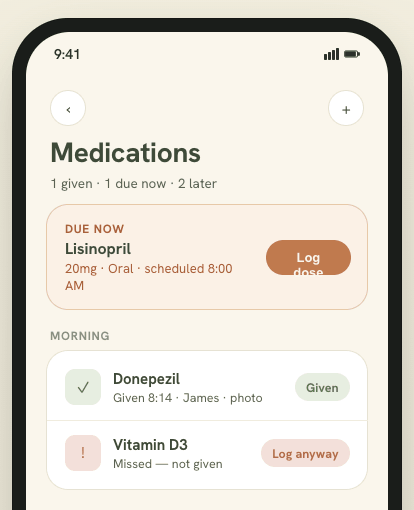
The Medications screen answers one question calmly: what’s due now? You’ll never have to wonder again whether someone gave Mom her 9am pill.
Add a medication or supplement
Tap the + and choose Medication or Supplement. Vitamins, fish oil, and other over-the-counter items live right alongside prescriptions — same schedule, same reminders — and carry a small Supplement label so the list stays easy to scan. You can add medications from both the app and the web portal.
Set the schedule
Pick a Form (tablet, capsule, liquid, patch…) and a Frequency from the dropdowns. The schedule then adapts to the frequency — choose Twice daily and you’ll set two dose times; As needed (PRN) asks for none. You can also set a start date and end date — perfect for a short course like an antibiotic, or a med that begins next week. Binda builds the upcoming doses for you between those dates.
Each medication in the schedule shows its cadence in plain language — Daily, Twice daily, Every other day, Once weekly, or As needed — alongside the dose times, so the list reads at a glance.
See allergies without leaving the page
The Medications screen has an Allergies button. Tap it and the recorded allergies open in a quick popup — no jumping to another page — so you can double-check a reaction right where you’re logging a dose. (The coordinator still manages allergies on the person’s profile.)
The care coordinator and — where enabled — caregivers can add and edit medications; doctors invited to Binda can add and edit them too. Every medication records who added it and who last changed it, so there’s always a clear trail.
Log a dose
The coordinator, caregivers, and invited doctors can all log (administer) a dose. On the web, the left of the Medications page shows the next 24 hours of scheduled doses, so what’s coming up is always in view.
- Open Medications. Doses that are due appear at the top.
- Tap a dose and mark it given (or note it as missed).
- Optionally turn on photo confirmation to attach a quick picture of the dose as a record for the team.
The optional pill-photo check
If you add a photo, Binda can run an optional in-app check and tell you whether the pills look consistent with the medication on file. It’s a gentle safety touch — advisory only, never a diagnosis or medical advice. You’re always in control of what gets logged.
Colors that mean something without alarming you
- Given — a muted sage. Reassuring.
- Due / scheduled — a calm gold. Not urgent.
- Missed — a soft clay-rose. Never a jarring red.
Tasks & checklists
Tasks turn Binda from a shared calendar into a verifiable record that care actually happened — so family can relax, and caregivers have a simple way to show they did their job.
Build the checklist (coordinator)
Open Tasks & checklists and, under Manage, add a task — for example “Morning blood pressure” or “Afternoon walk.” For each one you choose:
- How often — every day, certain days of the week, every few days, or a one-time task. A task can also repeat several times a day (just add more times).
- Time of day — with a gentle grace window, because real caregiving isn’t to-the-minute.
- Who does it — a specific caregiver, or “any on shift.”
- Verification — a simple checkbox, or a required note.
Binda schedules the upcoming occurrences for you, so today’s checklist is always ready.
Work the checklist (caregiver)
- Open Tasks & checklists to see everything due today.
- Tap the checkbox to mark a task done — add a note if one’s asked for.
- If something can’t be done, tap “Can’t do” and pick a reason (refused, unavailable, not applicable, other). A task is never silently skipped — it’s always done, or explained.
Checklists work offline — mark tasks done in a home with no signal and they sync automatically when you’re back online.
See how the day is going (family)
Everyone with access gets a calm dashboard: today’s completion, what’s still to do, anything overdue, and anything marked can’t-do with its reason. It updates through the day, so distant family can glance and feel reassured without micromanaging.
Shifts & timekeeping
Caregivers track their time, and the whole team sees what happened during each visit.
Clock in and out
- At the start of a visit, tap Clock in on the Caregiver home.
- At the end, tap Clock out.
- Write a short handoff note — a couple of lines about how the visit went. It flows into the team timeline so the next person is caught up.
Some caregivers submit timesheets instead of clocking in and out — this is configured per caregiver by the coordinator. Either way, hours are recorded and visible to whoever has permission.
Fix a shift, or remove one
Mistakes happen — the wrong day, the wrong person, the same visit entered twice. A caregiver can correct or delete their own shift while it’s still pending, so the person who knows they typed 1:00 instead of 13:00 is the one who can fix it.
Once the coordinator approves a shift it stops moving: approved and paid hours are locked, and only the coordinator can change them after that. The coordinator can edit or remove any shift on the plan at any time.
Put the schedule in your own calendar
On the Shifts page, Subscribe in your calendar app adds the circle’s shifts, appointments and events to the calendar on your phone (Apple Calendar, Google Calendar and most others). Before the link opens, Binda explains what that means: the calendar app you choose will receive and keep a copy of the schedule — titles, dates, times and places, though never the notes — and it stays up to date on its own.
To stop every calendar that was ever subscribed, the care manager opens Plan settings → Calendar sharing and taps Stop calendar sharing. The old link stops working at once; anyone who still wants the schedule subscribes again. Then delete the old subscription inside your calendar app to remove what it already copied.
Hours & expenses
Caregiving costs money as well as time — groceries, a prescription pickup, the drive to a specialist. Hours & expenses keeps all three in one place so nobody is reconstructing a month from receipts and memory.
Hours
Every clocked shift and submitted timesheet lands here, with its status — pending, approved, or paid. The coordinator approves hours; approving is what turns a claim into something to pay.
Expenses
- Open Hours & expenses and tap Add expense.
- Enter the amount and pick a category — Groceries, Medical supplies, Transportation, Household, or Other.
- Add a short description and the date, and save it.
The coordinator sees everything logged for the plan and marks each one reimbursed when it’s settled.
Mileage
Tap Log a trip and enter the miles driven. Binda multiplies them by the plan’s mileage rate and adds the total to what’s owed.
The coordinator sets the rate in Plan settings. New plans start at Binda’s current default rate; if you set up your plan a while ago, it’s worth checking — it keeps whatever rate it was created with until you change it, deliberately, so nobody’s reimbursement changes without them deciding it should.
Notes & observations
Notes are how the team keeps a shared, honest record of how someone is doing.
Quick tagged observations
Tap an observation category and jot a quick note. Categories include Mood, Mind, Meals, Sleep, Mobility, Fluids, and Pain. Mind is for memory, orientation, and confusion — helpful for dementia care. Over time these build a picture the whole team — and the doctor — can rely on.
One note can cover more than one category. A single entry about a rough night can rate Sleep and Mood together, each with its own face, instead of forcing you to write the same story twice.
A face to flag how it’s going
On any note you can tap a quick face — 🙂 all good, 😐 okay, or ☹️ an issue — so the team can scan the log and spot concerns at a glance. When the category is Mood, you can also pick a specific mood face (happy, calm, tired, anxious, sad, irritable, confused).
Tag someone with @
Type @ and a teammate’s name (or tap them in the composer) to tag them in a note. They get a notification so nothing important slips by.
Write from anywhere
On the web, the Home page has a Write a note button that opens the composer in a pop-up — no need to leave the page.
Freeform notes
Write anything longer as a plain note (no category needed). Everyone with access to notes can read them, and you can edit or delete a note you wrote.
Catch up with a summary
When you’ve been away, open the optional short summary of recent notes to catch up fast instead of scrolling everything. It’s there when you want it and out of the way when you don’t.
AI help is off until the care manager turns it on
The note summary, the “How the week looks” card, automatic note tags and the pill-photo check are all made by sending notes (or the photo) to an AI service — Anthropic’s Claude. Because that means care information leaves Binda, it is off for every circle until the care manager says yes.
- The care manager opens the AI summary page, or Plan settings → Privacy (on the web: Settings → Privacy).
- Read what will be shared and tap Turn on. The decision is recorded — who, when, and which wording they saw.
- To stop, switch AI help off in the same place. From the next moment on, nothing more is sent, and summaries made earlier are no longer shown.
Add photos to a note
Some things are easier to show than to describe — a rash, a swollen ankle, a meal that actually got eaten, the state of the pill organiser. You can attach up to four photos to any note.
- Write the note as usual and tap the photo button.
- Pick up to four images from your photo library.
- Save. Binda shrinks each photo before it uploads, so a full-size phone picture doesn’t eat your plan’s storage.
Tap any thumbnail to open it full-screen. Photos are part of the note, so they’re included when you export your data.
Photos are part of the paid plans (Essential, Care, and Family). On the free Starter tier the photo button shows a padlock; anything already attached stays where it is and stays visible.
Share a note with the family
Now and then a note is exactly what the family should see. The care manager — and only the care manager — can share one to the family feed.
- Open the note and choose Share with family.
- Choose which of its photos go along, one by one. None are shared unless you say so.
- Confirm. It appears in the feed for everyone who can see updates.
Doctors & appointments
Keep every provider and visit in one place, so nobody’s digging through texts to find the cardiologist’s number.
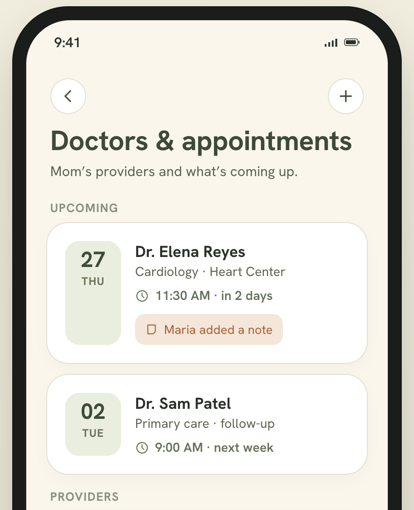
- Provider directory — add each doctor and specialist with their details.
- Upcoming appointments — see what’s next at a glance.
- Adding an appointment — the coordinator can always add one. Caregivers can too, unless the coordinator has turned it off for them: open Doctors & appointments and tap Add a scheduled appointment at the bottom of the page.
- Appointment requests — a caregiver whose access is set to view-only sees Request an appointment instead (“Mom should see the podiatrist”), and the coordinator schedules it.
- Changing one — caregivers can reschedule or cancel a visit during a shift. Removing an appointment outright stays with the coordinator.
- Insurance & coverage — record Medicare, Medicaid, or a private plan (insurer, plan, member ID, group number, member-services phone) right on this page, so it’s one tap away when a doctor or the office needs it. The coordinator manages these entries; an invited doctor can view them.
- Allergies & emergency contacts — an invited doctor can also see the recorded allergies and emergency contacts, so critical safety information is right there during a visit. The coordinator manages these on the person’s profile; the doctor sees them read-only.
Invite a doctor to Binda
You can give a doctor or specialist their own sign-in so they see exactly what you choose — and nothing else.
- When you add a doctor, tick “Invite to Binda” and enter their email — or open a provider already in the directory and choose “Invite this doctor to Binda.”
- Set what they can see with a few simple toggles (see Team & permissions).
- Binda emails them a sign-in link. Doctors join for free.
Family feed
The family feed is a warm, low-pressure stream that distant relatives can scroll without becoming a project manager.
- Share calm updates — “Dad had a good afternoon in the garden.”
- Family can react and comment without joining the daily logistics.
- No anxiety-inducing alerts. It’s a way to feel connected, not a task list.
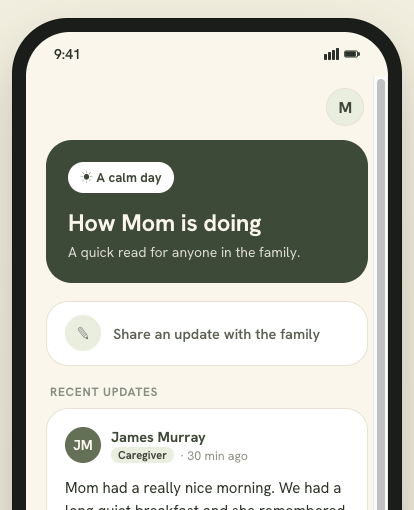
What family sees here is separate from the clinical notes above — that separation is deliberate, and you control it in permissions.
Team & permissions
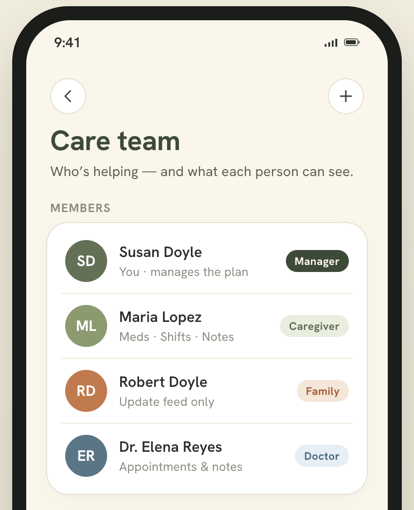
The coordinator sets who sees what. Roles come with sensible defaults, and you can override any of them per section.
Invite someone
- Open Team and tap Invite.
- Enter their name and email and choose a role: caregiver, family, doctor, or observer.
- Binda sends the invitation. Caregivers and family join for free.
Adjust what a person can see
Open a team member and use the per-section permissions to fine-tune access. For example:
- A doctor sees clinical data, not finances.
- A family member sees updates, not the timesheet.
- A caregiver sees their own work, not a coworker’s.
Invite a respite worker
For a caregiver who comes and goes — a respite worker, a relative covering a weekend — choose Respite worker when you invite. They join as a caregiver with a narrower view: medications and today’s schedule, and their own hours — not documents or the family feed. You can still adjust any section afterwards.
Notes work differently for them, on purpose. A respite worker writes their own visit notes and can read the ones they wrote — but not the rest of the circle’s notes, which are often personal. So that they still arrive knowing what matters, they see a short summary of the last 60 days instead. It’s a summary of the team’s notes, not medical advice.
Pause someone between visits
Open a team member and use the Access section.
- Pause — they stay in the circle and keep their history, but see nothing — notes, medications, schedule — until you resume them. They stay on your Team list, marked Paused, so you can always bring them back.
- Resume — one tap, and they are back exactly as they were. No new invitation.
- Access ends — optionally set a date. Binda pauses them automatically that night.
Pausing is kinder than removing someone you expect to see again, and it means no one who isn’t currently helping can read the care record. A paused person does not count toward your caregiver seats.
Setting a doctor’s access
When you invite a doctor (see Doctors & appointments), you choose what they can see with a few toggles — each set to Hidden, View, or Edit:
- Medications
- Notes & observations (including the AI summary) — view only
- Doctors — the provider directory
- Doctor’s appointments — the calendar and history, controlled separately from the directory. This is also the setting that decides whether a caregiver can add and change appointments or only request them.
They only ever see the sections you turn on — never hours, expenses, or the family feed.
Working across circles
Each person you care for has their own circle — their own care manager, medications, notes, and team. If you help with more than one (say you're a caregiver for two families, or a family member coordinating a parent and an in-law), Binda keeps them completely separate, and you switch between them with one tap.
- On the web — use the circle switcher at the top of the left sidebar. It shows whose care you're viewing; tap it to see all your circles and pick another. Everything reloads for that person.
- In the app — go to Settings → Switch circle and choose the circle you want. Binda remembers the last one you were in, so you land back where you left off.
The shareable shift report
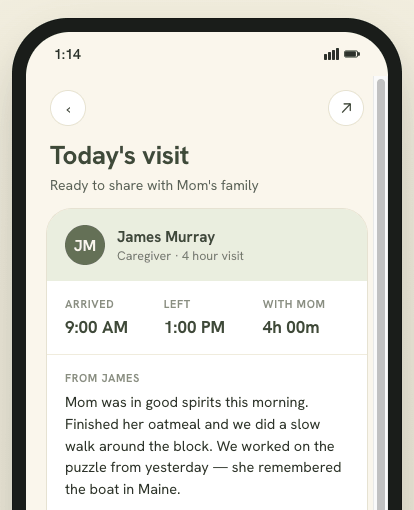
When a caregiver finishes a shift, they can generate a private shift report link. A family member can open it in a browser without an account — a calm, branded summary of how the visit went. It’s often a family’s first impression of Binda.
- Finish a shift and tap Share shift report.
- Send the private link by text or email.
- The recipient opens it in any browser — no sign-in, no app required.